How to Fix Bluetooth Headphones Keeping Disconnecting on Phone

Bluetooth headphones frequently disconnect from your phone due to signal interference, low battery, outdated software, or physical obstructions. Resolving this often involves simple troubleshooting steps like restarting devices, re-pairing, or checking for firmware updates.
Experiencing your favorite tunes or crucial calls getting abruptly cut off because your Bluetooth headphones decide to take an unexpected break from your phone is undeniably frustrating. This common technological hiccup can transform an otherwise smooth audio experience into a series of annoying interruptions. Whether you're commuting, working out, or simply trying to relax, a stable connection is paramount. The good news is that while the problem feels complex, the solutions are often straightforward and within your reach. This comprehensive guide will delve into the myriad reasons why your Bluetooth headphones might be acting up, providing a detailed roadmap to diagnose and rectify these persistent disconnection issues, ensuring your audio remains uninterrupted and clear.
The intricate dance between your phone and your wireless headphones involves a delicate balance of radio frequencies, software protocols, and hardware integrity. When this balance is disturbed, even slightly, the connection can become erratic. Understanding the underlying causes is the first step toward a lasting fix. We'll explore everything from environmental factors that disrupt signals to software glitches hiding within your devices, equipping you with the knowledge and practical steps to restore a robust and reliable Bluetooth connection. Prepare to reclaim your seamless audio experience with confidence and ease.
Understanding the Common Culprits Behind Disconnections
Before diving into specific fixes, it's crucial to understand the fundamental reasons why Bluetooth headphones might struggle to maintain a stable link with your smartphone. Several factors, both internal and external, can contribute to this frustrating issue. One of the most prevalent causes is electromagnetic interference. Bluetooth operates on the 2.4 GHz frequency band, a crowded spectrum shared by Wi-Fi networks, microwave ovens, cordless phones, and even some smart home devices. When too many devices are vying for space on this band, signal integrity can degrade, leading to dropouts and disconnections. Moving away from these potential sources of interference can often provide an immediate, albeit temporary, solution to the problem.
Another significant factor is the distance between your headphones and your phone. While Bluetooth technology boasts a certain range, obstructions like walls, furniture, or even your own body can significantly reduce this effective distance. The signal strength diminishes rapidly with distance and barriers, making a reliable connection harder to sustain. Always try to keep your phone relatively close to your headphones, ideally within direct line of sight, especially in environments where interference is already a concern. Furthermore, a low battery level on either your headphones or your phone can severely impact Bluetooth performance. As batteries drain, their ability to maintain a strong, consistent signal weakens, often resulting in intermittent connections or complete disconnections. Ensuring both devices are adequately charged before use is a simple yet often overlooked preventative measure.
Software glitches and outdated firmware also play a substantial role in connection instability. Just like any other electronic device, your phone and headphones rely on software to function correctly. Bugs in the operating system, an old Bluetooth driver, or outdated headphone firmware can introduce communication errors that manifest as frequent disconnections. Keeping both your phone's operating system and your headphone's firmware up to date is essential for optimal performance and compatibility. These updates often include critical bug fixes and performance enhancements that specifically address connectivity issues. Lastly, physical damage or wear and tear to either the headphones or the phone's Bluetooth antenna can lead to chronic disconnection problems that might require professional repair or replacement. Identifying the root cause is paramount to applying the most effective solution.
Initial Troubleshooting Steps for Unstable Connections
When your Bluetooth headphones begin to act erratically, starting with a few basic troubleshooting steps can often resolve the issue without needing to delve into more complex diagnostics. These initial checks are quick, easy, and surprisingly effective for a wide range of connectivity problems. The very first action you should take is to simply restart both your phone and your Bluetooth headphones. A soft reboot can clear temporary software glitches, refresh the Bluetooth module, and re-establish a clean connection. For your phone, a standard power cycle is usually sufficient. For headphones, turning them off, waiting a few seconds, and then powering them back on can often work wonders. This simple act can often resolve minor communication errors that accumulate over prolonged use.
Next, try unpairing and re-pairing your headphones with your phone. This process essentially wipes the slate clean, forcing both devices to rediscover and re-authenticate each other. To do this, go into your phone's Bluetooth settings, find your headphones in the list of paired devices, and select the option to "Forget" or "Unpair" the device. Once removed, put your headphones into pairing mode (refer to your headphone's manual for specific instructions, as this varies by model), and then search for them again on your phone's Bluetooth menu. This re-pairing often fixes issues related to corrupted pairing data or incorrect connection profiles that might have developed over time. It ensures a fresh, optimized connection is established between the two devices, eliminating any lingering configuration conflicts.
Additionally, ensure that your phone's Bluetooth is enabled and not in airplane mode, which disables all wireless communications. Also, check that your headphones are fully charged. As mentioned earlier, low battery levels can significantly impair connection stability and range. A quick charge might be all that's needed to restore a robust link. Finally, minimize the number of active Bluetooth connections your phone is trying to maintain simultaneously. While modern smartphones can handle multiple connections, having too many active devices can sometimes strain the Bluetooth module, leading to instability with your primary audio device. Disconnect any non-essential Bluetooth accessories temporarily to see if it improves the performance of your headphones. These foundational steps often pave the way for a stable and uninterrupted listening experience.

Addressing Environmental and Device-Specific Factors
Beyond basic restarts and re-pairing, various environmental conditions and device-specific quirks can contribute to persistent Bluetooth disconnection issues. Understanding and mitigating these factors is key to achieving a stable connection. One of the most significant environmental challenges is signal interference. As previously noted, Bluetooth operates on the 2.4 GHz frequency, which is also used by numerous other devices. High-density areas with many Wi-Fi networks, particularly those operating on overlapping channels, can create a "noisy" radio environment that disrupts Bluetooth signals. Large metal objects, thick walls, and even dense human bodies can absorb or reflect radio waves, weakening the signal between your phone and headphones. Try to use your headphones in an open space, away from other wireless devices, and keep your phone in a pocket or bag on the same side as your headphone's primary receiver (often the right earbud) to minimize body obstruction.
Device compatibility and software are also critical considerations. While Bluetooth is designed for universal compatibility, differences in Bluetooth versions (e.g., Bluetooth 4.2 vs. 5.0 vs. 5.2) and specific implementations by manufacturers can sometimes lead to subtle communication problems. Older headphones might struggle to maintain a connection with newer phones that have advanced power management features, or vice-versa. Always ensure that both your phone's operating system and your headphone's firmware are updated to their latest versions. Manufacturers frequently release updates to improve compatibility, fix bugs, and enhance performance, directly addressing connectivity issues. Checking for these updates through your phone's settings or the headphone manufacturer's companion app is a vital step.
Furthermore, certain phone settings can inadvertently impact Bluetooth stability. For Android users, features like "Adaptive Connectivity" or battery optimization settings can sometimes aggressively manage background processes, including Bluetooth, leading to disconnections to save power. You might need to adjust these settings to ensure Bluetooth remains active and prioritized for your headphones. On iPhones, while less common, ensuring "Low Power Mode" isn't overly restricting background activities can also be beneficial. It's also worth considering specific applications that might be interfering. Some apps, especially those that heavily utilize audio or location services, can occasionally conflict with Bluetooth processes. If disconnections primarily occur when using a particular app, try testing your headphones with other applications to isolate the problem. For more in-depth troubleshooting regarding specific pairing issues, you might find useful information on how to fix Bluetooth earbuds that won't pair with your phone, which shares some overlapping solutions.
Advanced Diagnostics and System Adjustments
When the basic troubleshooting steps don't yield a lasting solution, it's time to delve into more advanced diagnostics and system-level adjustments. These methods can address deeper software conflicts or hardware-related nuances that might be causing your Bluetooth headphones to disconnect persistently. One critical area to explore is the network settings reset on your phone. This action typically resets all network-related configurations, including Wi-Fi, mobile data, and crucially, Bluetooth. It does not erase your personal data but will require you to re-enter Wi-Fi passwords and re-pair all Bluetooth devices. This can resolve corrupted network settings that might be silently affecting Bluetooth performance. On Android, you usually find this under "System" > "Reset options" > "Reset Wi-Fi, mobile & Bluetooth." For iOS, it's under "Settings" > "General" > "Transfer or Reset iPhone" > "Reset" > "Reset Network Settings."
For Android users, accessing Developer Options can provide granular control over Bluetooth settings that might improve stability. To enable Developer Options, go to "Settings" > "About phone" and tap "Build number" seven times. Once enabled, navigate to "System" > "Developer options" and look for Bluetooth-related settings. You might experiment with options like "Bluetooth AVRCP Version" or "Bluetooth A2DP Hardware Offload." Changing these settings can sometimes resolve compatibility issues or improve audio streaming stability. However, exercise caution, as incorrect adjustments in Developer Options can lead to unintended consequences. If you make changes and experience new problems, revert them to their default values or perform a network settings reset.
Another often overlooked aspect is the potential for hardware issues within your phone's Bluetooth module. While less common, the Bluetooth antenna or chip can sometimes malfunction, leading to weak signals or frequent dropouts. If you've tried every software-based solution and the problem persists across different Bluetooth headphones, a hardware fault in your phone might be the culprit. In such cases, professional repair or replacement of the device might be necessary. Similarly, if the issue only occurs with one specific pair of headphones but other Bluetooth devices connect fine, the problem likely lies with the headphones themselves. This could be due to a faulty internal antenna, a dying battery, or even physical damage. Considering a factory reset for the headphones, if supported, could be a last-ditch effort before considering them irreparable. These advanced steps require a bit more technical comfort but can be incredibly effective in pinpointing and resolving stubborn disconnection issues that defy simpler solutions.
Optimizing Your Bluetooth Environment for Stability
Achieving consistent and reliable Bluetooth headphone performance often goes beyond just fixing existing problems; it involves proactively optimizing your usage environment and device management. A stable connection is a sum of many small parts working in harmony. One crucial aspect is minimizing the number of active Bluetooth devices connected to your phone. While modern smartphones can handle multiple simultaneous connections, each additional device adds a load to the Bluetooth module, potentially reducing bandwidth and stability for your primary audio connection. Prioritize your headphones by temporarily disconnecting smartwatches, fitness trackers, or other Bluetooth accessories when you need uninterrupted audio. This ensures your phone dedicates maximum resources to maintaining a strong link with your headphones, preventing any unnecessary strain or potential interference from other paired items.
Another significant improvement comes from understanding and managing potential interference sources. As Bluetooth shares the 2.4 GHz spectrum with Wi-Fi, cordless phones, and even microwave ovens, reducing exposure to these can dramatically enhance stability. When possible, try to move away from active Wi-Fi routers, especially those operating on the same frequency. If your router has dual-band capabilities (2.4 GHz and 5 GHz), consider connecting your phone to the 5 GHz Wi-Fi band, leaving the 2.4 GHz band less congested for your Bluetooth devices. Furthermore, avoid placing your phone directly next to other transmitting devices while using your headphones. Even everyday objects like a metal water bottle or a thick book can act as physical barriers, attenuating the Bluetooth signal and causing dropouts. Maintaining a clear line of sight between your phone and headphones, even over short distances, can often make a noticeable difference in connection strength and reliability.
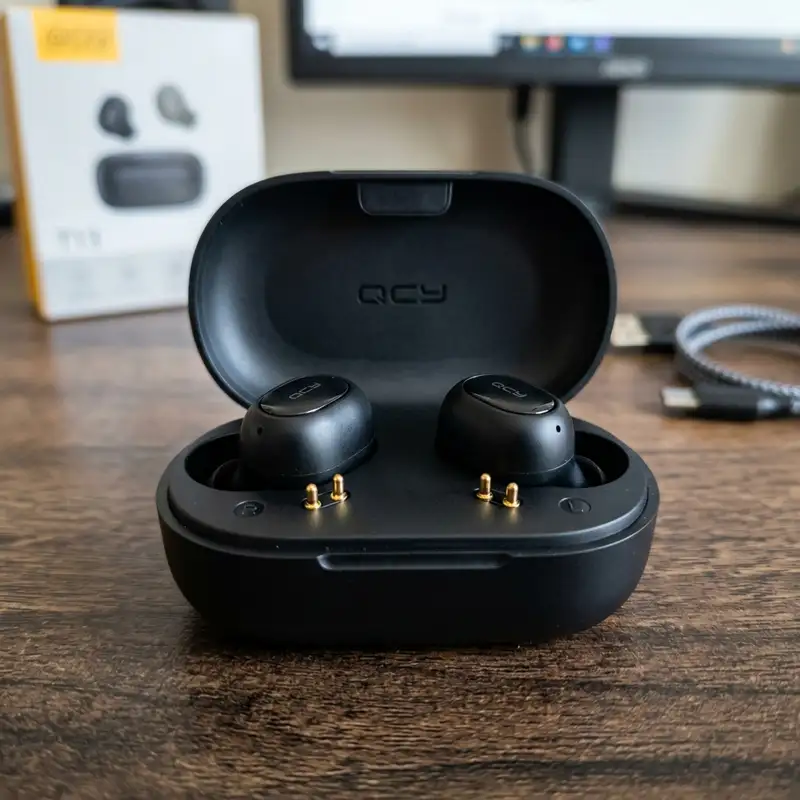
Regular maintenance of your headphones and phone also plays a vital role. Keeping the charging contacts on your wireless earbuds clean is essential, as grime or sweat can impede proper charging, leading to low battery issues that manifest as disconnections. Similarly, ensuring your phone's charging port and any headphone jacks are free of lint or debris can prevent other connectivity issues, even if they don't directly affect Bluetooth. Periodically restarting your phone and headphones, even when not experiencing problems, can help clear temporary caches and refresh their internal systems, maintaining optimal performance. Consider updating your phone's operating system and your headphones' firmware as soon as new versions become available, as these updates often contain critical bug fixes and performance enhancements that improve Bluetooth stability and compatibility. By proactively managing these environmental and maintenance factors, you can create an optimal ecosystem for your Bluetooth headphones, ensuring a consistently strong and reliable audio connection.
DomineTec Tip: Avoid using Bluetooth headphones near 2.4 GHz Wi-Fi routers to prevent connection dropouts.
Troubleshooting Specific Scenarios and Advanced Fixes
Sometimes, Bluetooth disconnection issues are not generalized but rather tied to specific scenarios or require more targeted interventions. Understanding these nuances can help you apply the most effective solution for your particular situation. For instance, if your headphones only disconnect when you move to a different room, it strongly suggests a range or interference issue. Bluetooth signals are line-of-sight dependent and can be significantly attenuated by walls, especially those made of dense materials like concrete or brick. In such cases, try to keep your phone closer to you or relocate it to a more central position within your home to minimize physical obstructions. Experimenting with different positions for your phone can sometimes reveal an optimal spot where the signal remains robust throughout your movement, preventing those annoying cutouts as you walk around.
Another common scenario involves disconnections occurring only when using certain applications, particularly those that stream high-quality audio or video, or those that heavily utilize location services. This could indicate an app-specific conflict or a resource strain on your phone. Try clearing the cache and data for the problematic app, or reinstalling it entirely. You can also check the app's permissions to ensure it's not unnecessarily interfering with Bluetooth or background processes. In some cases, adjusting the audio quality settings within the streaming app itself to a slightly lower bitrate might alleviate the strain on your Bluetooth connection, leading to greater stability. This is particularly relevant for older phones or headphones that might struggle with very high-resolution audio codecs.
Furthermore, the physical case on your phone can sometimes be an unexpected culprit. Thick or metallic phone cases, while offering protection, can sometimes block or weaken the phone's internal Bluetooth antenna, leading to reduced range and frequent disconnections. If you suspect your case might be an issue, try removing it and testing your headphones without it for a period. If the connection significantly improves, investing in a case made from a non-obstructive material like silicone or thin plastic might be a worthwhile solution. This simple test can quickly rule out a surprisingly common cause of signal degradation. For users who also connect their headphones to other devices, understanding how to manage these connections effectively is crucial. For instance, learning about how to connect Bluetooth headphones to Windows 10 can provide insights into multi-device pairing strategies that can prevent conflicts when switching between your phone and computer.
Comprehensive Troubleshooting Table for Bluetooth Disconnections
To provide a quick reference and systematic approach, the following table summarizes common Bluetooth disconnection issues, their probable causes, and the most effective solutions. This guide is designed to help you rapidly identify and address the root of your connectivity problems, ensuring a more stable and enjoyable audio experience.
| Issue | Probable Cause | Recommended Solution |
|---|---|---|
| Frequent, random disconnections | Signal interference (Wi-Fi, other devices), low headphone battery, software glitch on phone/headphones. | Restart both phone and headphones. Ensure headphones are fully charged. Move away from other wireless devices. Unpair and re-pair. |
| Disconnections when moving away from phone | Exceeding Bluetooth range, physical obstructions (walls, body), weak signal due to environment. | Keep phone closer to headphones. Maintain line of sight. Avoid dense obstructions. Test in open areas. |
| Disconnections only with specific apps | App conflict, high resource usage by app, outdated app version. | Clear app cache/data, reinstall app. Check app permissions. Try lower audio quality settings within the app. |
| Disconnections after a period of inactivity | Phone's battery optimization settings, headphone's power-saving feature. | Disable battery optimization for Bluetooth services on your phone. Check headphone manual for auto-off settings. |
| Audio stutters or cuts out in crowded places | High electromagnetic interference, crowded 2.4 GHz spectrum. | Move to a less congested area. Disconnect other Bluetooth devices. Use phone's 5 GHz Wi-Fi if available. |
| Headphones disconnect shortly after connecting | Corrupted pairing data, outdated firmware, hardware fault (rare). | Perform a "Forget Device" and re-pair. Update phone OS and headphone firmware. Try factory resetting headphones. |
| Disconnections with a new phone case | Phone case blocking Bluetooth antenna. | Remove phone case and test. If improved, consider a different case material (e.g., thin plastic, silicone). |
| Disconnections after phone OS update | New OS version bug, incompatibility with current headphone firmware. | Check for headphone firmware updates. Perform a network settings reset on phone. Report issue to phone manufacturer. |
Checklist for Optimizing Bluetooth Performance
To ensure your Bluetooth headphones deliver the best possible performance and maintain a stable connection, follow this comprehensive checklist. Each item addresses a potential area of improvement or a common pitfall that can lead to disconnections, allowing you to systematically optimize your setup for uninterrupted audio enjoyment.
- Verify Headphone Charge: Ensure your Bluetooth headphones are fully charged before each use. Low battery levels are a frequent cause of unstable connections and range reduction.
- Verify Phone Charge: Similarly, confirm your smartphone has sufficient battery life. A phone struggling with low power can deprioritize Bluetooth functions, leading to disconnections.
- Restart Both Devices: Power cycle both your phone and your headphones. This simple step can clear temporary software glitches and refresh their Bluetooth modules, often resolving minor issues.
- Unpair and Re-pair: In your phone's Bluetooth settings, "Forget" or "Unpair" your headphones, then re-initiate the pairing process. This creates a fresh connection profile, eliminating corrupted data.
- Check for Firmware Updates: Visit the manufacturer's website or use their companion app to check for and install any available firmware updates for your headphones. Updates often include critical bug fixes and performance enhancements.
- Update Phone Operating System: Ensure your phone's operating system (iOS or Android) is running the latest version. OS updates frequently contain Bluetooth stability improvements and compatibility patches.
- Minimize Interference: Keep your phone and headphones away from other 2.4 GHz devices like Wi-Fi routers, microwave ovens, and cordless phones. Reduce physical obstructions such as walls or large metal objects.
- Reduce Distance: Maintain proximity between your phone and headphones, ideally within 10-15 feet (3-5 meters), especially in environments prone to interference.
- Manage Multiple Connections: Disconnect other unnecessary Bluetooth devices from your phone when using your headphones to reduce the load on the Bluetooth module.
- Reset Network Settings: If issues persist, perform a network settings reset on your phone. This resets all Wi-Fi, mobile data, and Bluetooth configurations, which can resolve deep-seated connectivity problems.
- Test Without Phone Case: Temporarily remove your phone case to see if it's obstructing the phone's Bluetooth antenna. If performance improves, consider a less obstructive case.
- Check for App Conflicts: If disconnections occur with specific apps, try clearing their cache/data, reinstalling them, or checking their permissions to ensure they're not interfering with Bluetooth.
- Disable Battery Optimization: For Android users, check battery optimization settings for Bluetooth or specific apps. Ensure they are not aggressively closing background Bluetooth processes.
- Clean Headphone Contacts: For true wireless earbuds, regularly clean the charging contacts on both the earbuds and their case to ensure proper charging and stable connections.
- Test with Another Device: If possible, pair your headphones with a different phone or device to determine if the issue lies with the headphones or your primary phone.
By systematically working through this checklist, you can identify and resolve most common Bluetooth disconnection problems, leading to a much more consistent and enjoyable audio experience with your wireless headphones.
Frequently Asked Questions About Bluetooth Disconnections
What causes Bluetooth headphones to keep disconnecting from my phone?
Bluetooth headphones commonly disconnect from phones due to a combination of factors including signal interference from other wireless devices (like Wi-Fi routers or microwaves operating on the 2.4 GHz frequency), exceeding the effective range between the phone and headphones, low battery levels on either device, or physical obstructions such as walls or even your own body blocking the signal. Additionally, outdated software or firmware on either your phone or the headphones, corrupted Bluetooth pairing data, or conflicts with other applications running on your phone can also contribute to an unstable connection. Sometimes, aggressive battery optimization settings on your phone might inadvertently shut down Bluetooth processes to conserve power, leading to unexpected disconnections. Identifying the specific trigger is crucial for applying the correct solution to restore a reliable link.
How can I prevent my Bluetooth headphones from disconnecting frequently?
To prevent frequent disconnections, start by ensuring both your headphones and phone are fully charged and their software/firmware is up to date. Always keep your phone close to your headphones, ideally within line of sight, and try to minimize physical barriers. Reduce electromagnetic interference by moving away from Wi-Fi routers, smart devices, and other 2.4 GHz electronics. Unpairing and re-pairing your headphones can resolve corrupted connection profiles. For Android users, checking battery optimization settings to ensure Bluetooth isn't being aggressively managed can also help. Regularly restarting both devices can clear temporary glitches, and if you use a phone case, test if removing it improves stability, as some cases can obstruct the phone's antenna. Proactive maintenance and managing your wireless environment are key to a stable connection.
Does Wi-Fi interference really affect Bluetooth headphone stability?
Yes, Wi-Fi interference significantly affects Bluetooth headphone stability because both technologies operate on the same 2.4 GHz radio frequency band. This shared spectrum means that Wi-Fi signals, especially in crowded environments with many active networks, can create electromagnetic "noise" that disrupts the Bluetooth signal. When your phone and headphones are trying to communicate amidst this congestion, the Bluetooth connection can become weak, leading to stuttering audio, dropouts, or complete disconnections. To mitigate this, consider connecting your phone to a 5 GHz Wi-Fi network if available, as this band does not interfere with Bluetooth. Moving away from Wi-Fi routers or other transmitting devices can also help reduce the impact of interference and improve your headphone's connection stability, ensuring a clearer audio experience.
When should I consider replacing my Bluetooth headphones or phone if disconnections persist?
You should consider replacing your Bluetooth headphones or phone if, after trying all comprehensive troubleshooting steps—including restarting, re-pairing, updating firmware/software, resetting network settings, and testing in different environments—the disconnections still persist across multiple scenarios. If your headphones disconnect from various devices (not just your phone), the headphones themselves likely have a hardware fault, such as a failing battery or antenna. Conversely, if all your Bluetooth headphones or accessories disconnect from your specific phone but work fine with other devices, then your phone's Bluetooth module might be faulty. Persistent issues, especially after a device has been dropped or exposed to moisture, often point to irreparable hardware damage, making replacement the most practical long-term solution.




