
Getting your wireless earbuds to connect to your smartphone should be a simple process, but connection glitches can be highly frustrating. If your wireless earbuds won't pair with your phone, **toggle your Bluetooth settings, restart both devices, and clear the Bluetooth cache** to restore wireless communication quickly and efficiently. This common issue affects both Android and iOS devices and is rarely a sign of hardware failure. In most cases, the failure to connect stems from minor software conflicts, temporary system bugs, or interference from surrounding electronic devices. By following a few logical troubleshooting steps, you can get your audio streaming again without needing professional technical support.
1. Understanding the Wireless Pairing Process
To resolve connectivity issues effectively, it is essential to first understand how Bluetooth communication works between your smartphone and wireless earbuds. Unlike physical wired headphones that transmit audio signals through copper wires, wireless earbuds rely on short-range radio waves operating on the unlicensed 2.4 GHz ISM frequency band. This is the exact frequency range shared by home Wi-Fi networks, microwave ovens, and other smart devices, making it prone to signal congestion and minor packet loss.
The pairing process consists of three main phases: device discovery, security authentication, and active connection establishment. When you place your wireless earbuds into 'Pairing Mode,' their internal transmitter broadcasts a public signal indicating availability. Your smartphone scans for these signals and prompts you to confirm the connection. Once authenticated, a secure digital link is saved in the cache memory of both devices so they can reconnect automatically in the future. Any interruption in this sequence prevents the connection.
Additionally, modern Bluetooth protocols (such as Bluetooth 5.0 and newer) offer substantial improvements in data throughput, communication range, and energy conservation. While newer headphones are backward compatible with older phone hardware, severe version gaps can sometimes cause handshake delays or sudden disconnections. Recognizing how these protocols interact helps you pinpoint whether the issue is a simple glitch or a physical limitation of your current hardware configuration.
2. Why Your Smartphone Cannot Find Your Bluetooth Earbuds
When your mobile phone fails to detect your wireless earbuds, the culprit can range from a dead battery to deep-seated operating system conflicts. The single most common reason is insufficient battery power in either the earbuds or their charging case. When power levels drop below a critical threshold, the earbuds automatically disable their Bluetooth antennas to conserve power, preventing your phone from detecting them during active scans.
Another major factor is device hijacking by previous pairings. If your earbuds were previously paired with a computer, tablet, or another family member's phone, they will automatically reconnect to that active device as soon as you remove them from the case. This active link blocks new pairing requests, making it seem like the earbuds are not functioning. Disabling Bluetooth on the other device is necessary to free the channel.
Furthermore, the accumulation of temporary network data and corrupted cache files in your smartphone's system storage can freeze the scanning service. When this happens, the Bluetooth menu may search indefinitely without showing any nearby hardware. Physical obstructions like reinforced concrete walls, metal phone cases, or strong electromagnetic fields from nearby electrical panels can also degrade the signal quality, blocking the pairing attempt entirely.
3. Step-by-Step Guide to Force Pairing Mode
If basic toggles fail to resolve the problem, follow this structured guide to force a connection between your phone and your wireless earbuds:
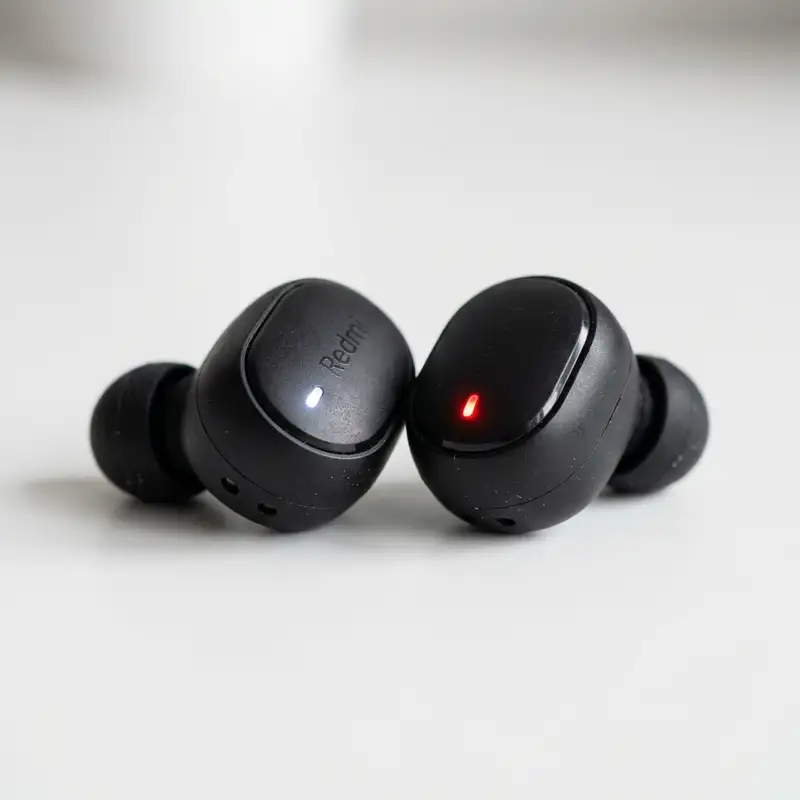
- Manually Trigger Pairing Mode: Simply opening the case is often not enough. For most brands, you must press and hold the physical button on the case or the touch control area of the earbuds for 3 to 10 seconds until the status LEDs blink rapidly.
- Delete the Earbuds from your Bluetooth Registry: Go to Settings > Bluetooth, locate the name of your earbuds, and select 'Forget This Device' or 'Unpair'. This clears corrupted profiles that cause handshake errors.
- Perform a Network Refresh: Turn off your phone's Bluetooth, enable Airplane Mode for 15 seconds, turn Airplane Mode off, and turn Bluetooth back on. This restarts the wireless network adapter.
- Perform a Factory Reset on the Earbuds: Place the earbuds back in the charging case. Hold down the reset button (usually located on the back or bottom of the case) for 15 seconds until the light changes colors or blinks red.
- Clear the System Bluetooth Cache: On Android devices, navigate to Settings > Apps > System Apps > Bluetooth > Storage > Clear Cache. On iOS, resetting network settings achieves a similar deep refresh of connectivity drivers.
These steps reset the software configuration of both devices, eliminating most software-related communication blockages. If you are also having issues with your PC, read our comprehensive guide on how to connect bluetooth headphones to windows 10 for detailed setup instructions.
| Brand/Model | How to Enter Pairing Mode | How to Perform Factory Reset |
|---|---|---|
| Xiaomi Redmi Airdots | Remove from case; they will enter pairing mode automatically. | Press and hold both buttons for 15 seconds until the LEDs blink red and white twice. |
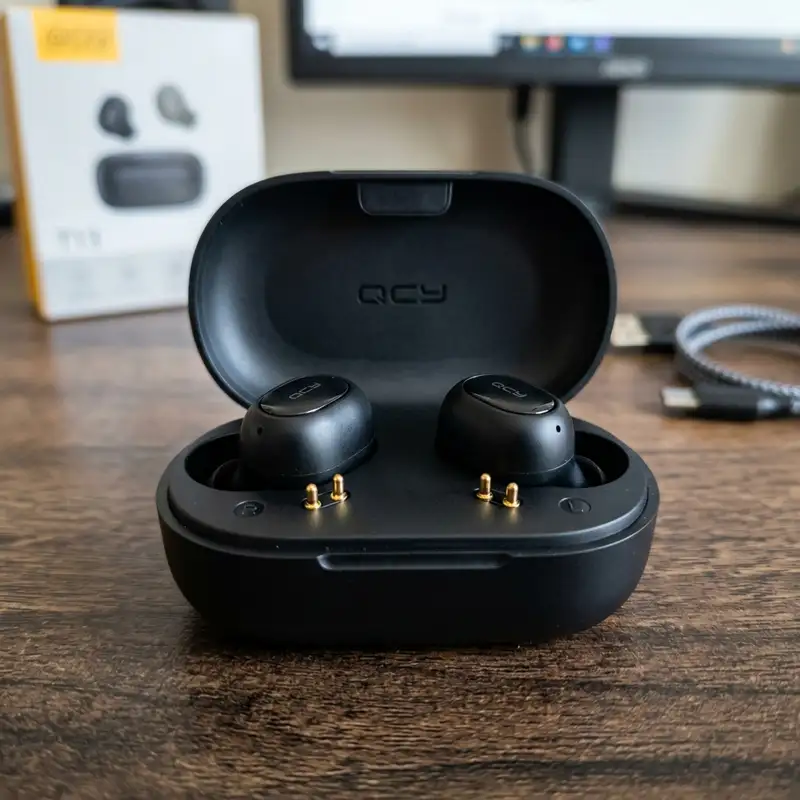
| QCY (T13 / T20) | Place in case and press the charging case button for 3 seconds. | Place in case and press the charging case button for 10 seconds until the LED blinks 5 times. |
| JBL Wave / Tune | Tap once and hold the right earbud's touch control for 5 seconds. | Place in case, tap one earbud twice and hold on the second tap for 5 seconds. |
| Apple AirPods | Open case lid and hold the button on the back until the status light flashes white. | Keep AirPods in case, hold the back button for 15 seconds until the light flashes amber, then white. |
4. Advanced Troubleshooting for Stubborn Connection Issues
If standard resets do not yield results, we must investigate deeper issues that can prevent connection. Signal interference is often overlooked. To rule this out, try turning off your router's 2.4 GHz band or move away from other wireless hardware like smart TVs, wireless landline phones, and baby monitors. This minimizes signal clashes and allows the Bluetooth receiver to process the pairing handshake without data corruption.
Another area to inspect is your smartphone's battery optimization settings. Android systems often force background tasks to sleep to save power, which can target the Bluetooth service. Navigate to your phone's battery settings, find the Bluetooth application, and set it to 'Do Not Optimize'. This guarantees the system allocates the necessary resources and keeps the wireless adapter active during the pairing phase.
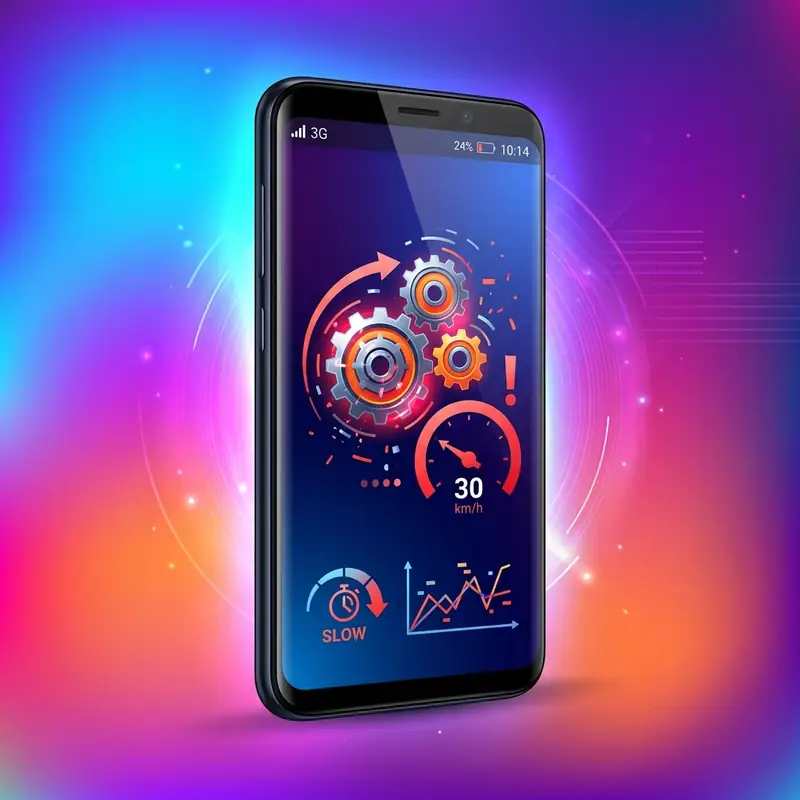
Furthermore, overall system slowdowns can freeze hardware scans. A phone with full storage or high RAM consumption may struggle to update its list of nearby Bluetooth devices. Clear your phone's cache, close background apps, and try again. For issues where the connection succeeds but only one earbud works, check our specific guide on bluetooth headphones only one side working fix for targeted instructions.

5. Proactive Tips to Prevent Future Pairing Failures
Preventing future connection drops requires routine maintenance of both the physical hardware and the device's software. Dust, lint, and earwax can collect on the metal charging contacts inside the case or on the earbuds. This buildup blocks the electrical current, preventing the earbuds from charging fully or registering when they are placed in the case. If the case doesn't detect them, they remain powered on and connected to your phone, causing battery drain and pairing confusion. Clean the contacts regularly using an isopropyl alcohol-moistened swab.
Keeping your smartphone's operating system updated with the latest software patches is equally important. System updates often contain fixes for Bluetooth drivers and stack configurations, improving compatibility with newer accessory chipsets. If your earbuds have a dedicated companion app (such as QCY, Sony, or Soundcore), install it and check for firmware updates for the earbuds themselves. These updates can fix connection stability bugs.
Finally, manage active Bluetooth connections across multiple home devices. If you frequently switch between your laptop, tablet, and smartphone, always disconnect the earbuds manually from the current device before connecting to a new one. This prevents the earbuds from getting stuck in a connection loop between two active hosts, ensuring a fast and error-free connection whenever you put them on.
Beyond the primary troubleshooting steps, understanding the direct role of the earbud firmware is of paramount importance. The firmware acts as the miniature operating system running on the earbuds, managing everything from digital audio packet decoding to power consumption routines and Bluetooth radio functions. Many modern wireless earbuds utilize highly integrated system-on-chips (SoCs) manufactured by industry leaders such as Qualcomm, Airoha, Realtek, or Bestechnic. These chips run complex software routines for active noise cancellation (ANC), environmental noise cancellation (ENC), and multipoint connectivity. When bugs occur in this software stack, the earbuds can stop responding to touch commands or fail to transition from standby mode to active pairing. Performing a factory reset restores the microcontroller's instruction register to its default values, effectively clearing any software loops within the internal memory.
It is also beneficial to consider the impact of the contemporary urban electromagnetic environment. We are constantly surrounded by invisible wireless networks operating on the unlicensed 2.2.4-GHz spectrum reserved for consumer devices. This frequency band is heavily congested, hosting everything from home Wi-Fi routers and Zigbee smart home sensors to wireless computer peripherals and operating microwave ovens. In dense urban areas or apartment complexes with dozens of active Wi-Fi networks on overlapping channels, radio frequency interference can cause severe packet loss during the initial handshake phase. Under these conditions, moving away from high-density signal sources and placing the earbuds adjacent to the smartphone reduces the bit error rate, enabling a successful and stable connection to proceed.
From the operating system's perspective, whether on Android or iOS, wireless networking services run as dedicated background daemons that communicate directly with the radio chipset through a hardware abstraction layer (HAL). Over time, memory allocation errors or resource leaks caused by unrelated background applications can cause these drivers to freeze or become unresponsive. When this happens, the Bluetooth settings panel may display an outdated or empty device list. Clearing the Bluetooth system cache and resetting network settings forces the operating system to kill all active communication processes and restart the hardware interfaces of the radio chip, resolving any logical lockups occurring in the background network drivers.
Another vital factor affecting connection stability is the specific Bluetooth profile negotiated during the handshake. For high-quality stereo audio transmission, devices use the A2DP (Advanced Audio Distribution Profile). For voice calls and media controls, they negotiate HFP (Hands-Free Profile) or HSP (Headset Profile) alongside AVRCP (Audio/Video Remote Control Profile). If your smartphone attempts to bind to the earbuds using a partial profile set due to a handshake timeout on the virtual RFCOMM channels, you will experience symptoms such as lack of audio during voice calls or earbuds that connect but fail to play media. Deleting the pairing registry forces a clean negotiation of all supported profiles from scratch.
To fully comprehend why these connection errors occur, we must dive deeper into mobile software architecture. Both Android and iOS leverage specialized software stacks, often referred to as Bluetooth stacks, that handle low-level communication protocols with the device's physical radio chip. Over time, this software stack can accumulate corrupt connection states or incomplete handshake logs, causing subsequent sync requests to fail. By performing a full network settings reset on your phone, you force the operating system to completely rebuild this stack from scratch, resolving conflicts that a simple system reboot cannot touch. This type of action is highly recommended following major operating system updates, as older drivers often clash with newly installed system files.
On the earbud side, the microcontrollers and Bluetooth chipsets built into these miniature devices operate with a very limited amount of flash memory. They are engineered to store only a tiny number of unique cryptographic keys (usually between one and eight host profiles). When this storage limit is reached on cheaper models, the firmware may lock up or silently refuse new connections without providing any diagnostic feedback. Executing a factory reset on the earbuds clears the internal EEPROM memory, forcing the microcontroller back to its default state and freeing up all registration slots so a stable pairing process can be re-established with your modern devices.
Physical distance and materials in the environment also play a key role in radio frequency attenuation. The power class specification of Bluetooth radios in consumer electronics typically limits transmission range to about 30 feet under ideal, open-space conditions. In typical residential or office layouts, however, partition walls, solid wood furniture, and glass windows absorb or reflect the radio waves. This attenuation degrades the signal to a point where essential pairing handshake packets are dropped, aborting the synchronization process. Therefore, always complete the initial pairing process while keeping the earbuds and smartphone within a three-foot radius of one another.
Dica DomineTec: Always turn off your phone's Wi-Fi temporarily if you're struggling to find new devices. Many older smartphones share the same internal antenna for both Wi-Fi and Bluetooth, which can cause severe signal clashes during searches.
Frequently Asked Questions about Bluetooth Earbuds
Why aren't my Bluetooth earbuds showing up in the list?
This usually happens because the earbuds are not in pairing mode or are connected to another device nearby. To make them visible, press and hold the pairing button on the earbuds or charging case until the LED light flashes quickly.
What should I do if the earbuds connect but sound plays from the phone speaker?
Go to your phone's Bluetooth settings, tap the gear icon next to your earbuds' name, and verify that both 'Media Audio' and 'Phone Calls' are enabled. If they are disabled, audio will continue to play through the phone's built-in speaker.
Does resetting my wireless earbuds erase any important data?
No, performing a factory reset only clears the history of paired devices from the earbuds' internal memory. It will not affect your phone's settings, but you will need to pair the earbuds with your devices again from scratch.
Can a phone case interfere with my Bluetooth connection?
Yes, thick protective cases, especially those with metal plates, aluminum linings, or magnetic mounts, can block or significantly weaken the 2.4 GHz radio signals from your phone's internal antenna, causing connection drops.



